Which log was it again?
Until now, adding a Stream meant you had to know where the log lived and what the file was called. With LogRaker 3.4 you can simply browse a Source’s folders, preview any log live, and add the one you want as a Stream with one click.
Files
Select an SSH Source in the sidebar and click ‘Files’ above its Streams (or right-click the Source and choose ‘Browse Files’), and its folders open in columns, Finder style, starting right in /var/log. Click your way around, and click any folder in the path bar above the columns to jump back up. A lock marks what your login can’t open, compressed logs are dimmed, and a file that already has a Stream shows that Stream’s status light, so you can tell at a glance what you’re already following.
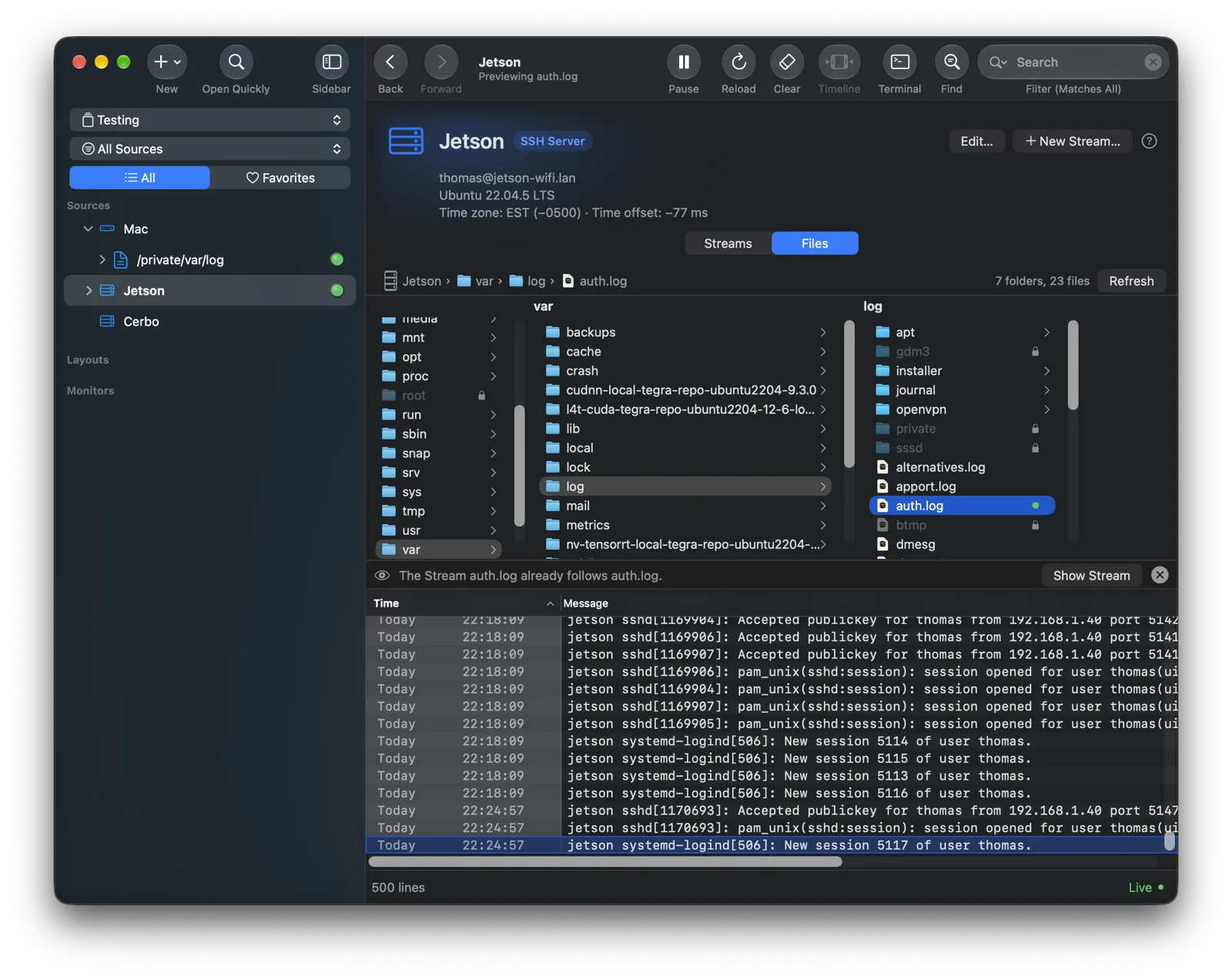
And then the fun begins… click a file, and its lines show up right below the folders, live, following the file as it grows. Nothing is saved, it’s just a peek, but Find, Filter, Pause and even Go to Time (more on that one below!) already work on it, just like on a Stream.
When it turns out to be the one, click ‘Save as Stream’ in the bar above the lines, or simply double-click the file, and THAT is it. It becomes a Stream at the end of the Source’s list, keeping the lines it has read so far, and ⌘Z takes it back if you change your mind. Click a file that already has a Stream, and the button says ‘Show Stream’ instead and takes you straight to it.
In the Web Edition, a Local System Source gets Files too, so the same goes for the logs on your own Mac.
Where was that Stream?
My sidebar has grown quite a bit by now (the Mac mini, the Cerbo GX with all its plugins, two Jetson Sources, Firebase, AWS, and so on), and scrolling up and down to find the one Stream I want got old. If you use Xcode you know ⌘⇧O, Open Quickly (VS Code and Cursor call it Quick Open, on ⌘P), and LogRaker 3.4 has one of its own.
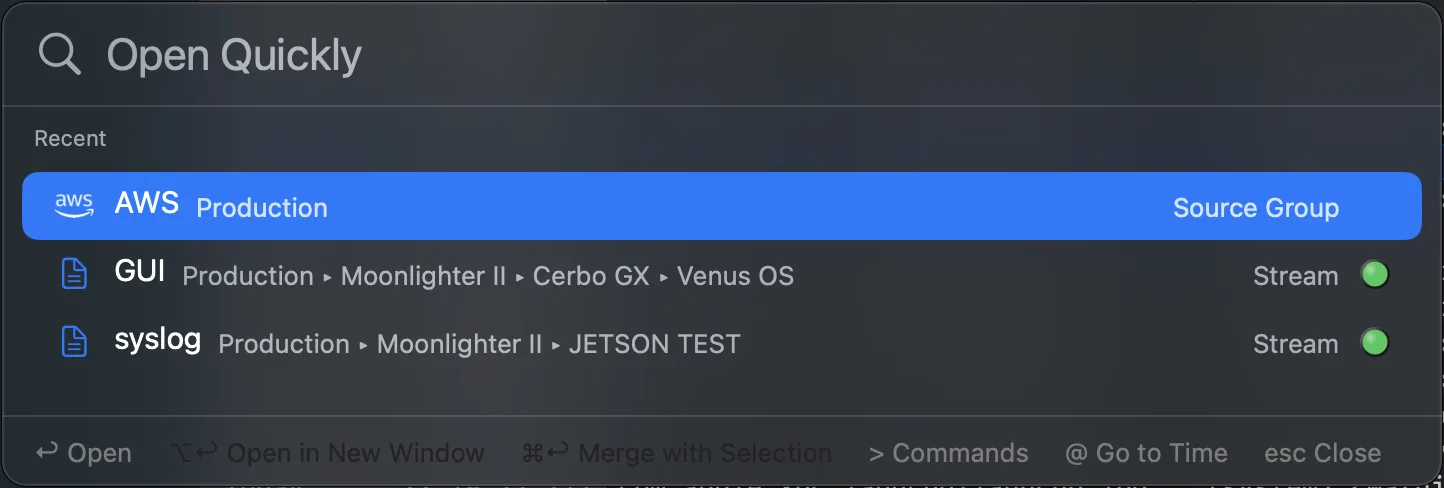
Click ‘Open Quickly’ above the sidebar, or press ⌘⇧O, and start typing. The letters only need to come in the right order, so “btr” finds my Boat Tracker Stream, and a space starts another word that can also match where something lives, so “syslog test” finds the syslog Stream on my JETSON TEST Source. It finds Streams, a Folder’s files, Sources, Layouts, Monitors, their groups and Workspaces, across every Workspace. Return selects it in the sidebar (switching Workspaces if it has to), ⌥Return opens it in a window of its own, and ⌘Return adds a Stream to what’s selected in the sidebar, so they show merged. Type > first, as in VS Code, and it lists the menu commands you can use right now, ready to run.
16:20, finally
Remember “something went wrong on the Cerbo GX at 14:32, now show me what Firebase logged around that time” from why I created LogRaker? Merging Streams by time took care of the second half of that wish a while ago, and now ‘Go to Time’ takes care of the first.
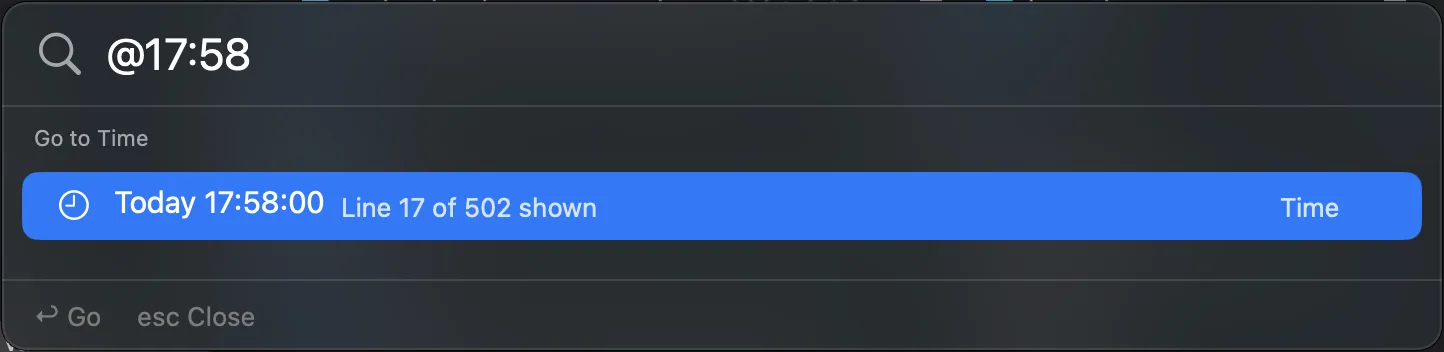
Select View ▸ ‘Go to Time…’ (⌘L), or type @ in Open Quickly, then a time: 16:20 for the most recent 4:20pm, 2026-11-22 16:20 for another day, or something like -5m or -2h for that long ago. Before you even press Return, it tells you where you’ll land, and then it jumps there, puts that line in the middle of the view and boxes its time for a moment so you can’t miss it. The Stream keeps running, but the view holds still while new lines arrive, so you can actually read what happened. It works the same in a merged view, which for me is the whole point!
A few more things
Everything you can create now lives in File ▸ ‘New’ (⌘1 through ⌘4 for ‘SSH Server…’, ‘Stream…’, ‘Layout…’ and ‘Monitor…’), so the File menu got a lot shorter. Browsing a server’s folders or an S3 bucket from the Stream editor now looks like Finder as well, with icons and roomier rows. And the sidebars in the main window and in Settings now follow System Settings ▸ Appearance ▸ ‘Sidebar icon size’, the way Finder’s does.
So, if you’ve ever SSH’d into a box just to find out what a log file is called, give LogRaker 3.4 a try. Click ‘Files’, click a log, and there it is! All the details are in the docs for Files, Open Quickly and Go to Time.
Thanks for reading!
